How to Connect Music Mouse to a DAW
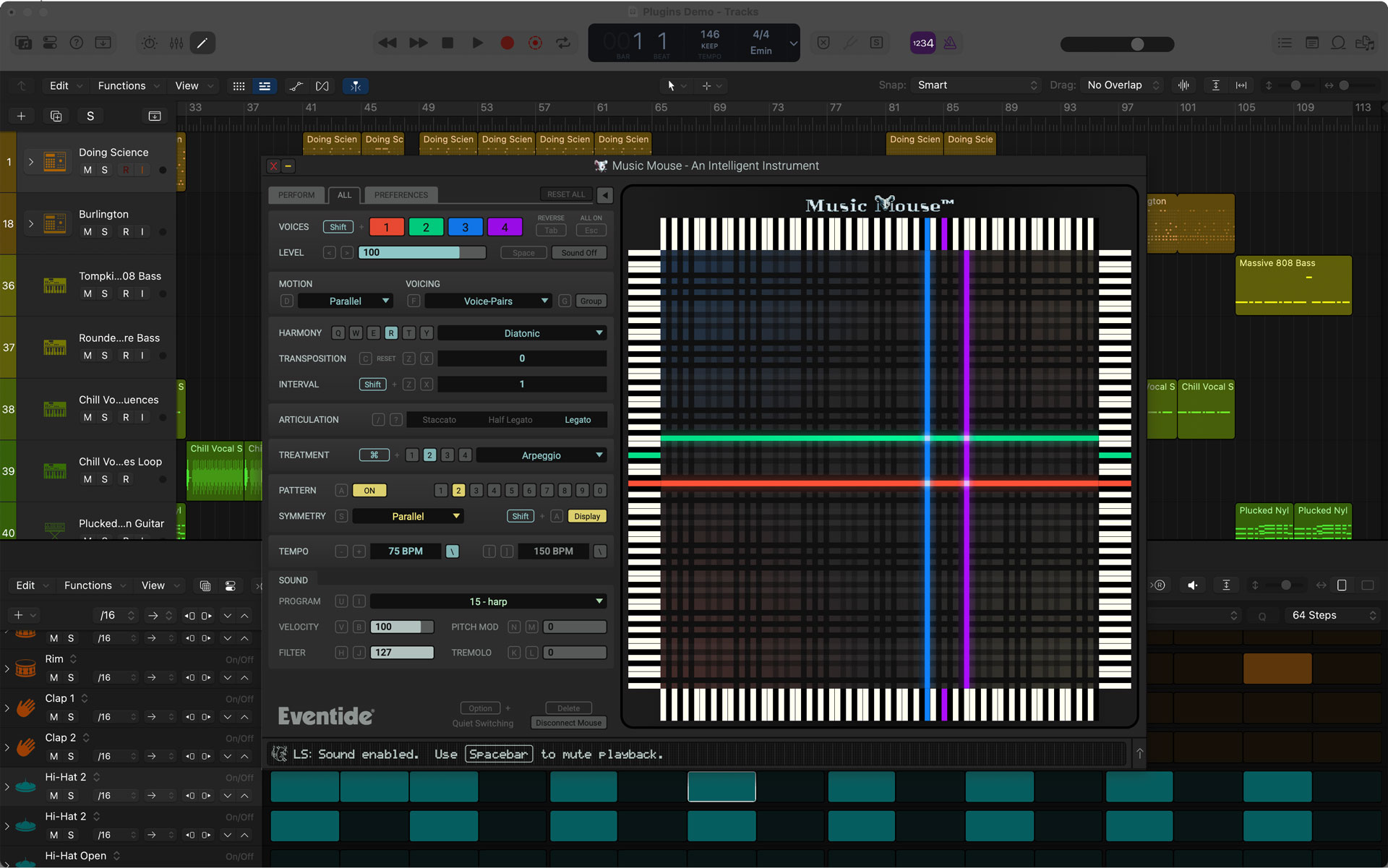
Music Mouse can send MIDI directly to your DAW and sync to your session using MIDI Clock. This guide walks through how to set it up with the most popular DAWs so you can route MIDI, lock to tempo, and start creating right away.
Jump to a section:
Ableton Live
- Open Music Mouse and Ableton Live (both applications must be open).
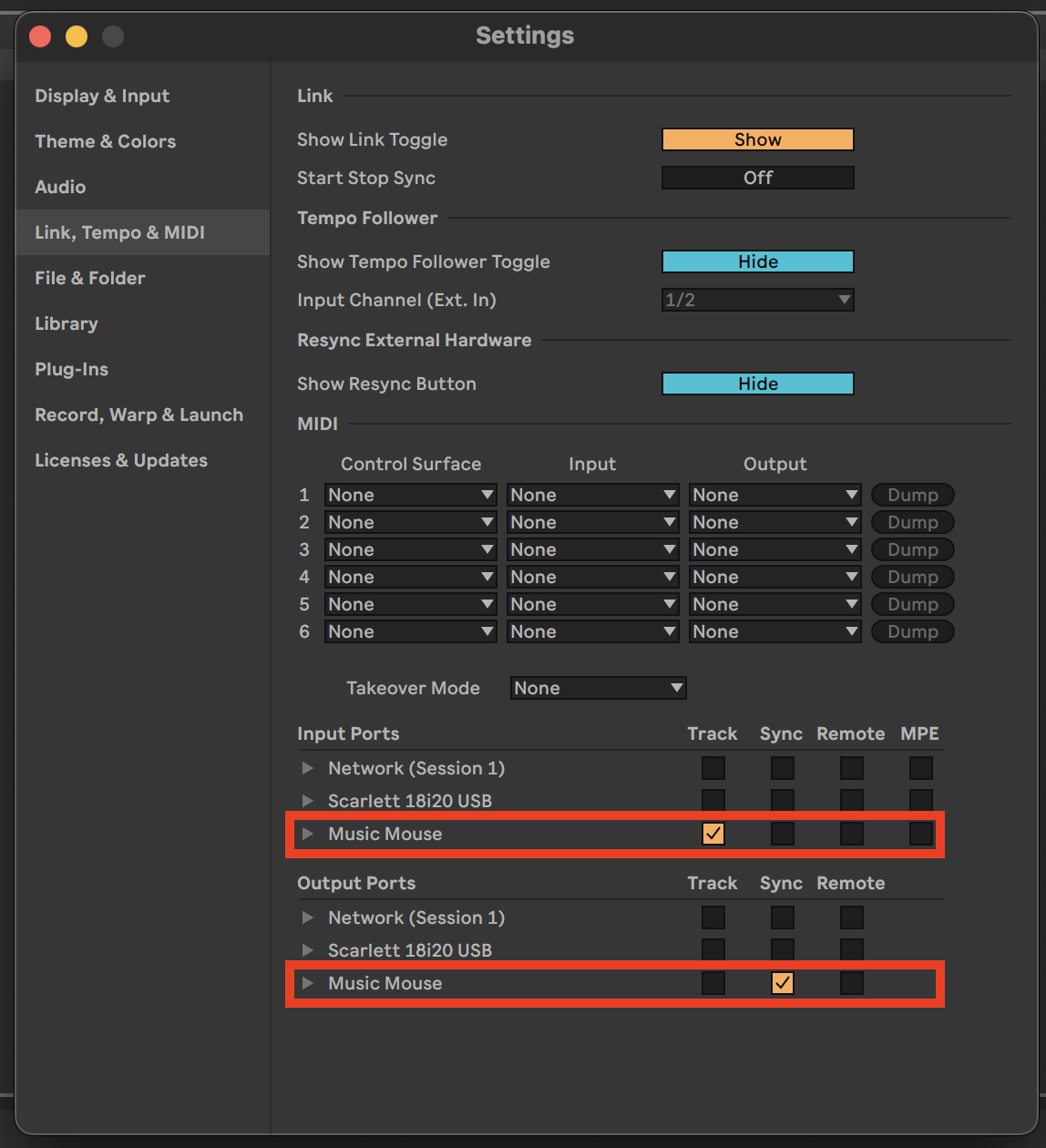
- Open Settings and select Link, Tempo & MIDI
- In Input Ports, enable “Track” for Music Mouse. In Output Ports, enable “Sync” for Music Mouse.
View the complete Ableton Live MIDI routing guide here
Logic Pro
- Open Music Mouse and Logic Pro (both applications must be open)
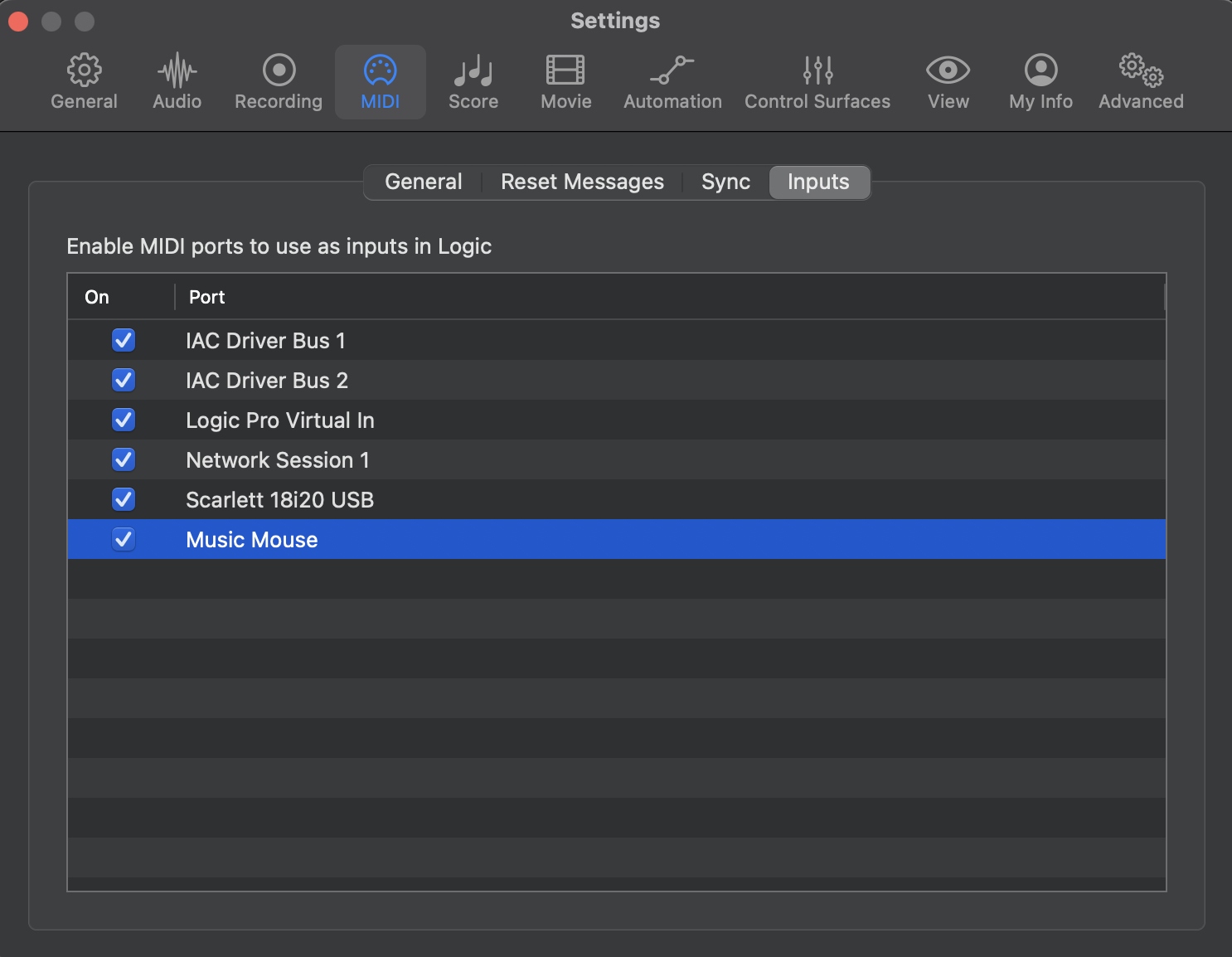
- In Logic Pro > Settings > MIDI > Inputs, make sure “Music Mouse” is enabled
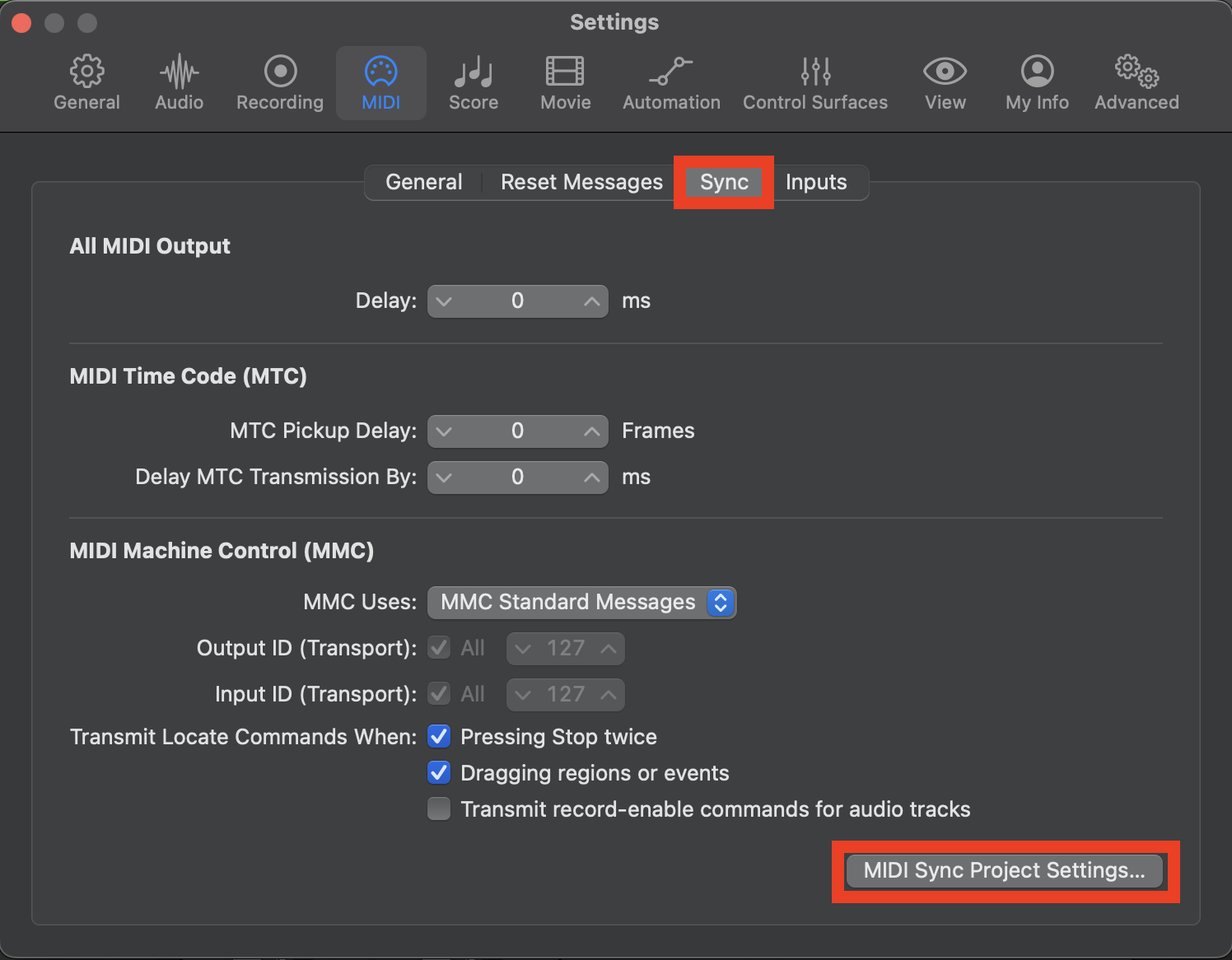
- Click the Sync tab next to the Inputs tab, and then click MIDI Sync Project Settings
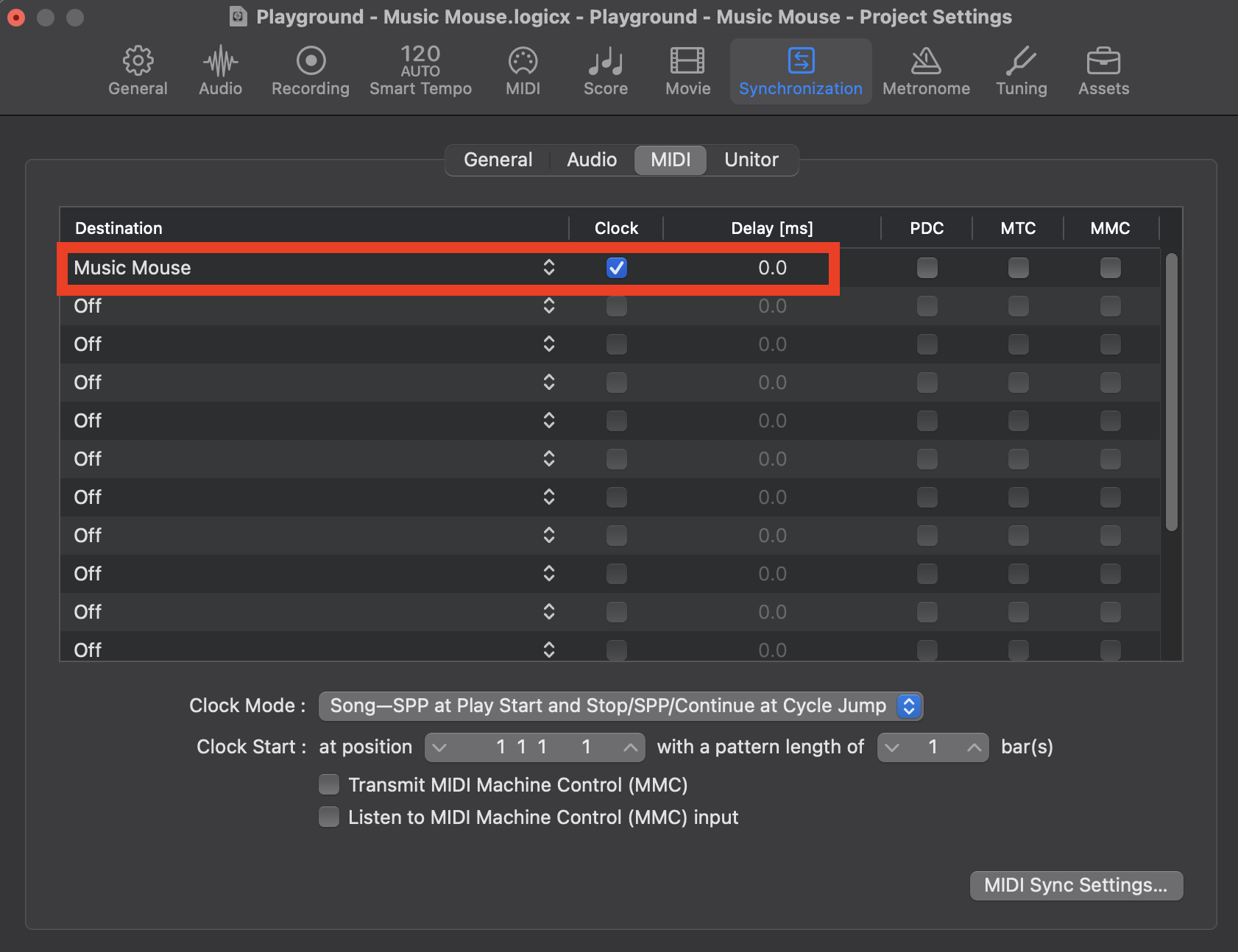
- Select “Music Mouse” as a Destination, and enable Clock
Pro Tools
- Open Music Mouse and Pro Tools (both applications must be open)
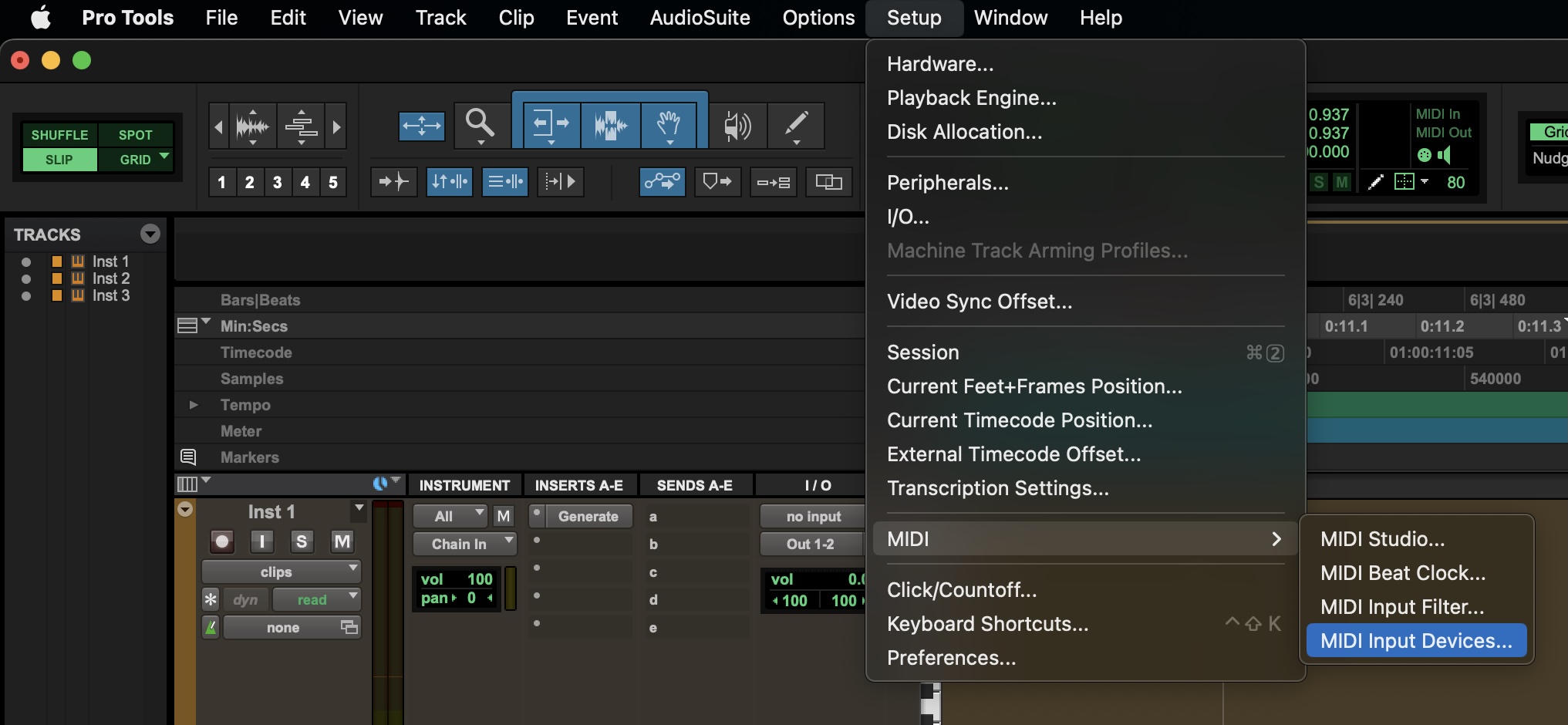
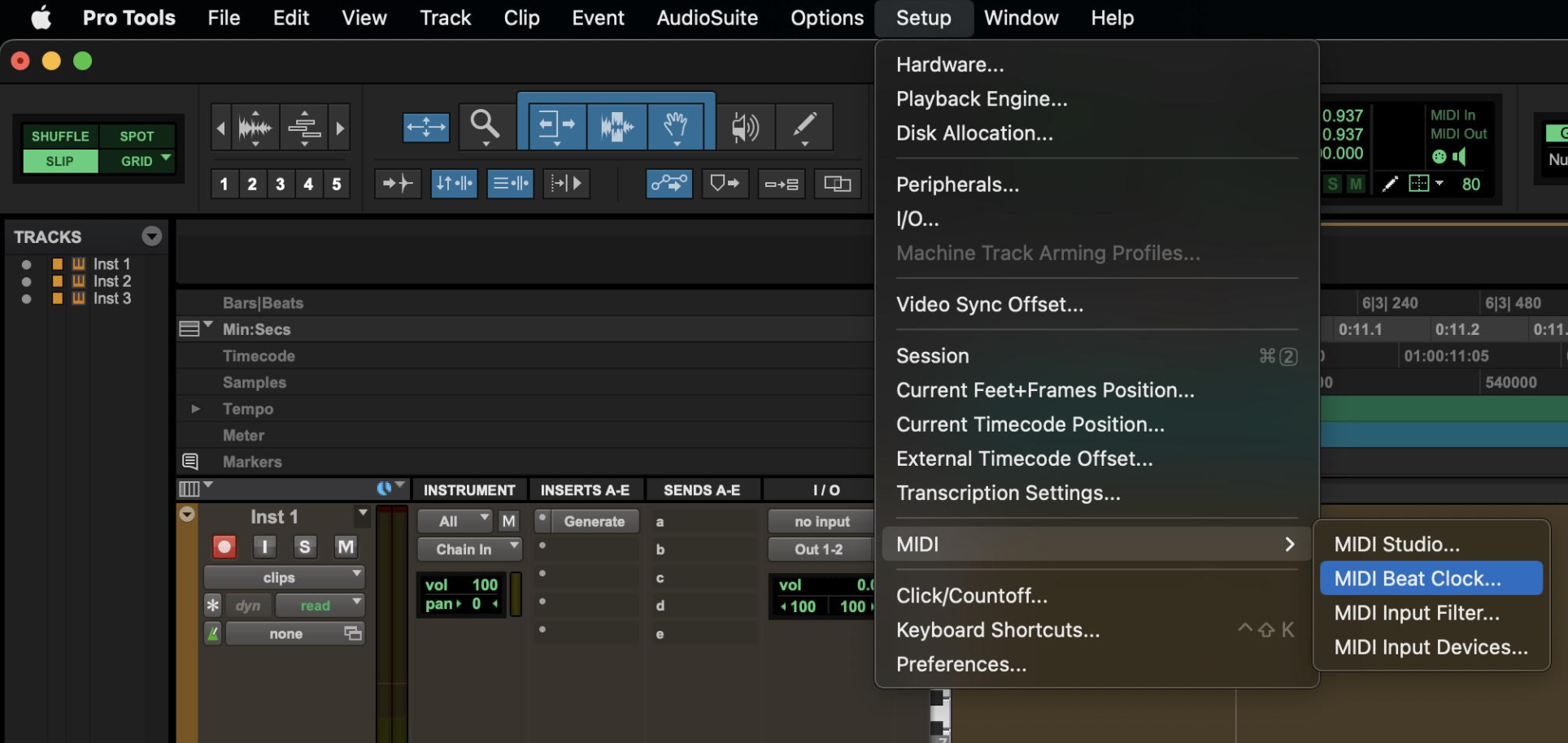
- In the top toolbar, select Setup > MIDI > MIDI Input Devices
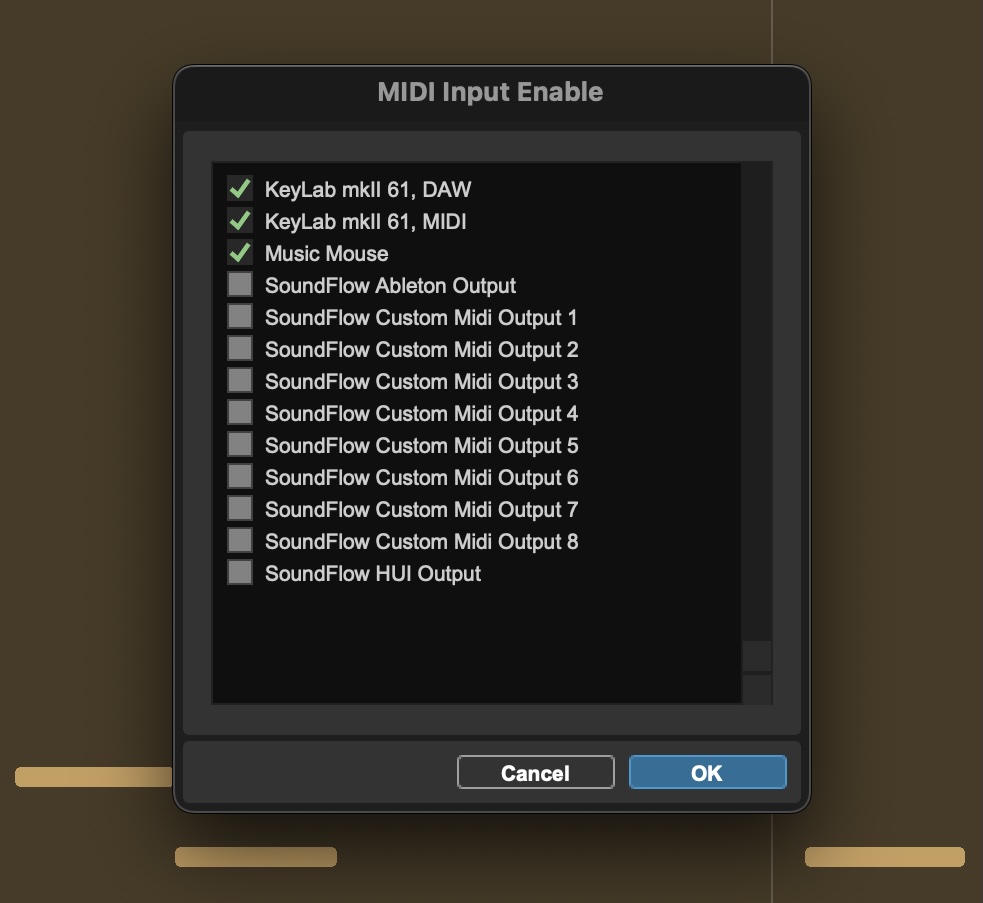
- Enable the “Music Mouse” MIDI Input device
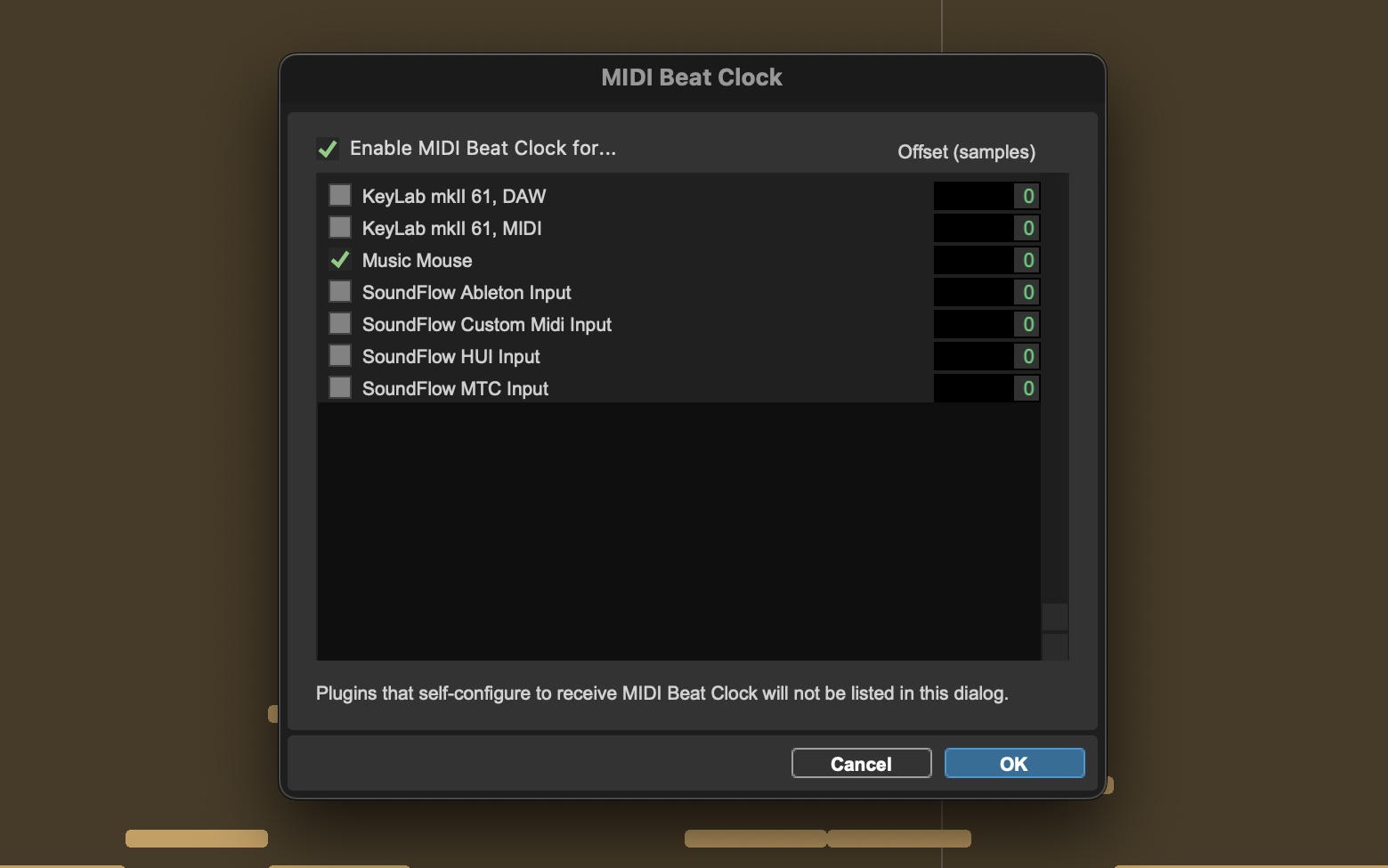
- Navigate to Setup > MIDI > MIDI Beat Clock
- Enable “Music Mouse“
Fender Studio Pro
- Open Music Mouse and Fender Studio Pro (both applications must be open)
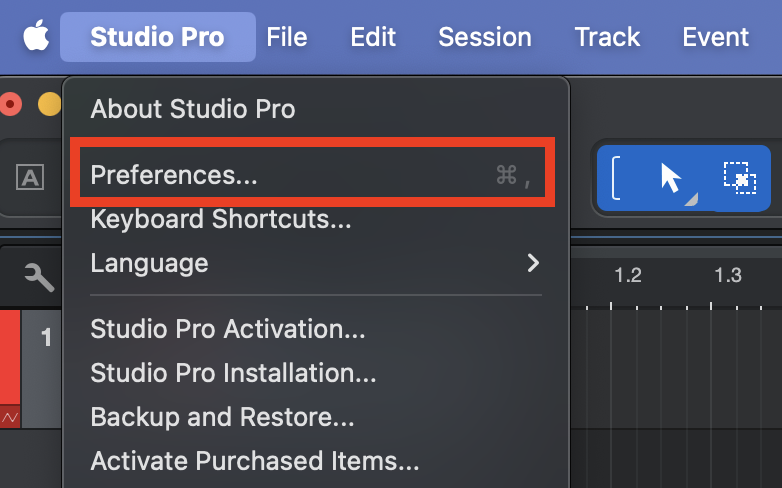
- Open Fender Studio Pro “Preferences“
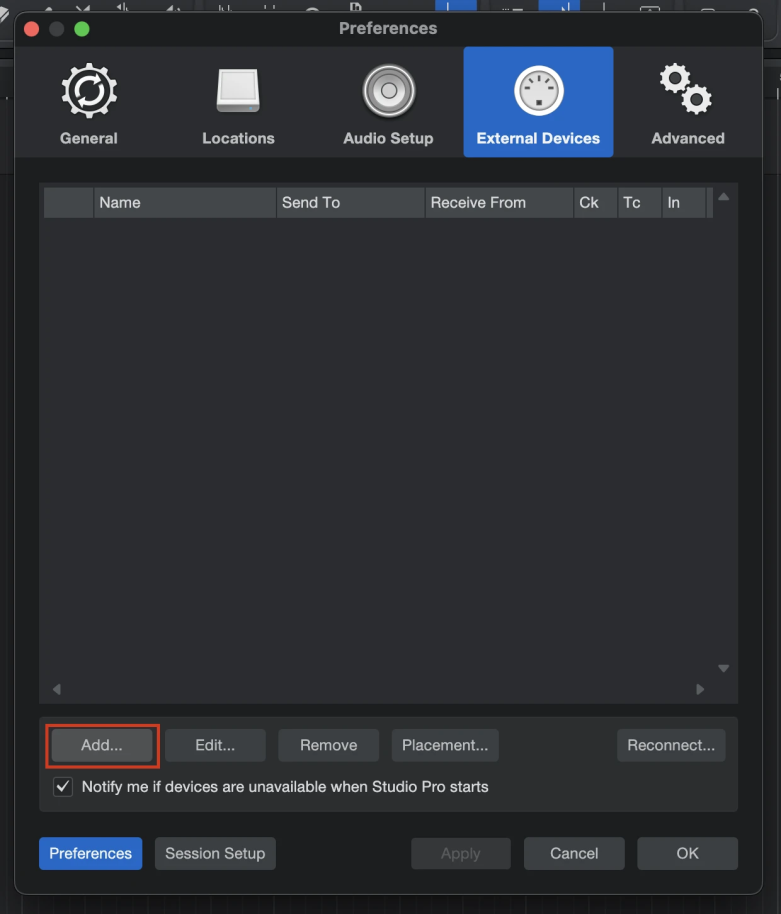
- Select the External Devices tab and click “Add“
- Select “Music Mouse” for the Receive From port
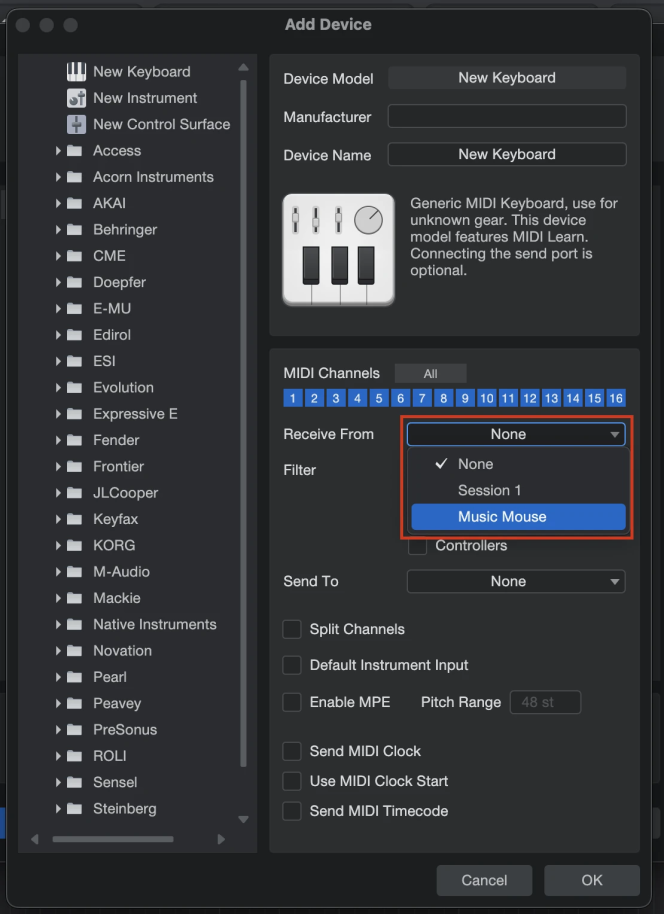
- Select “Music Mouse” for the Send To port
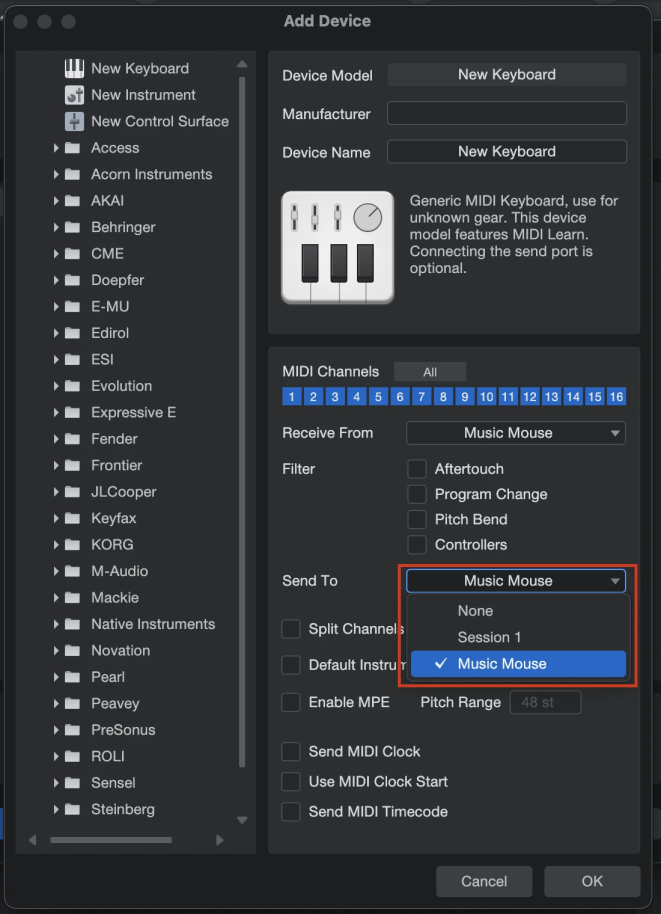
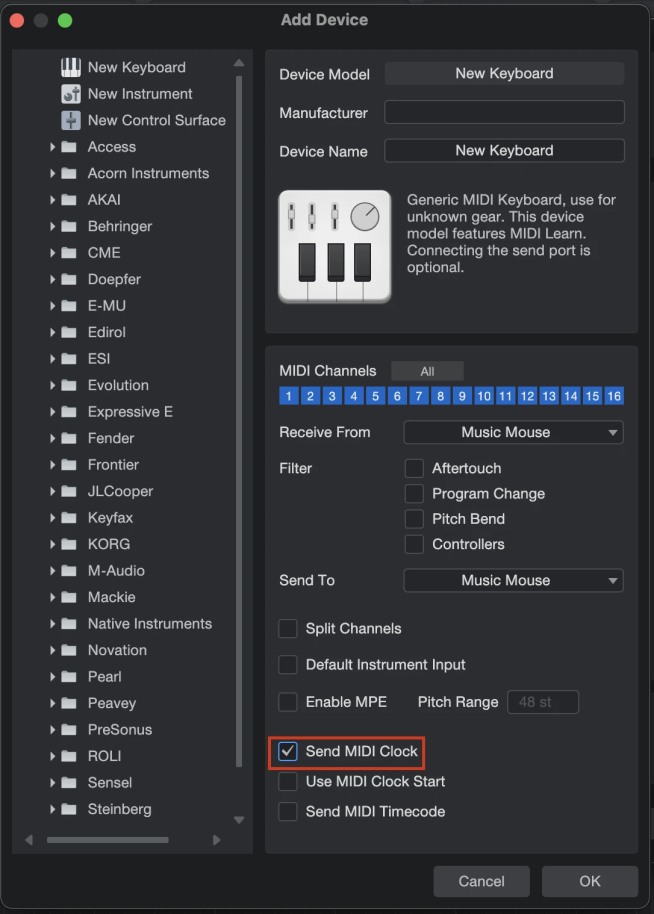
- Enable Send MIDI Clock
Reaper
- Open Music Mouse and Reaper (both applications must be open)
- In Reaper, open “Settings“
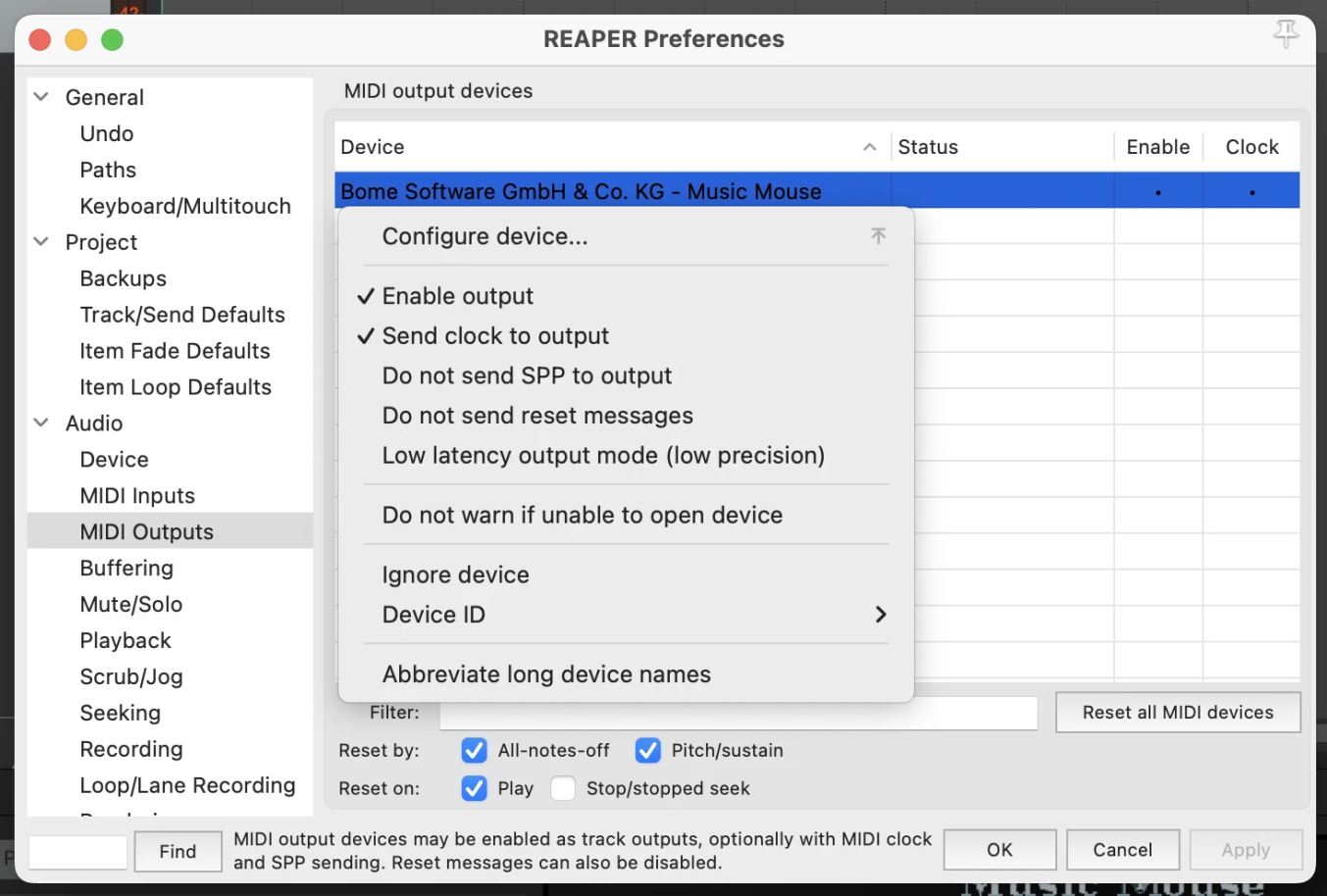
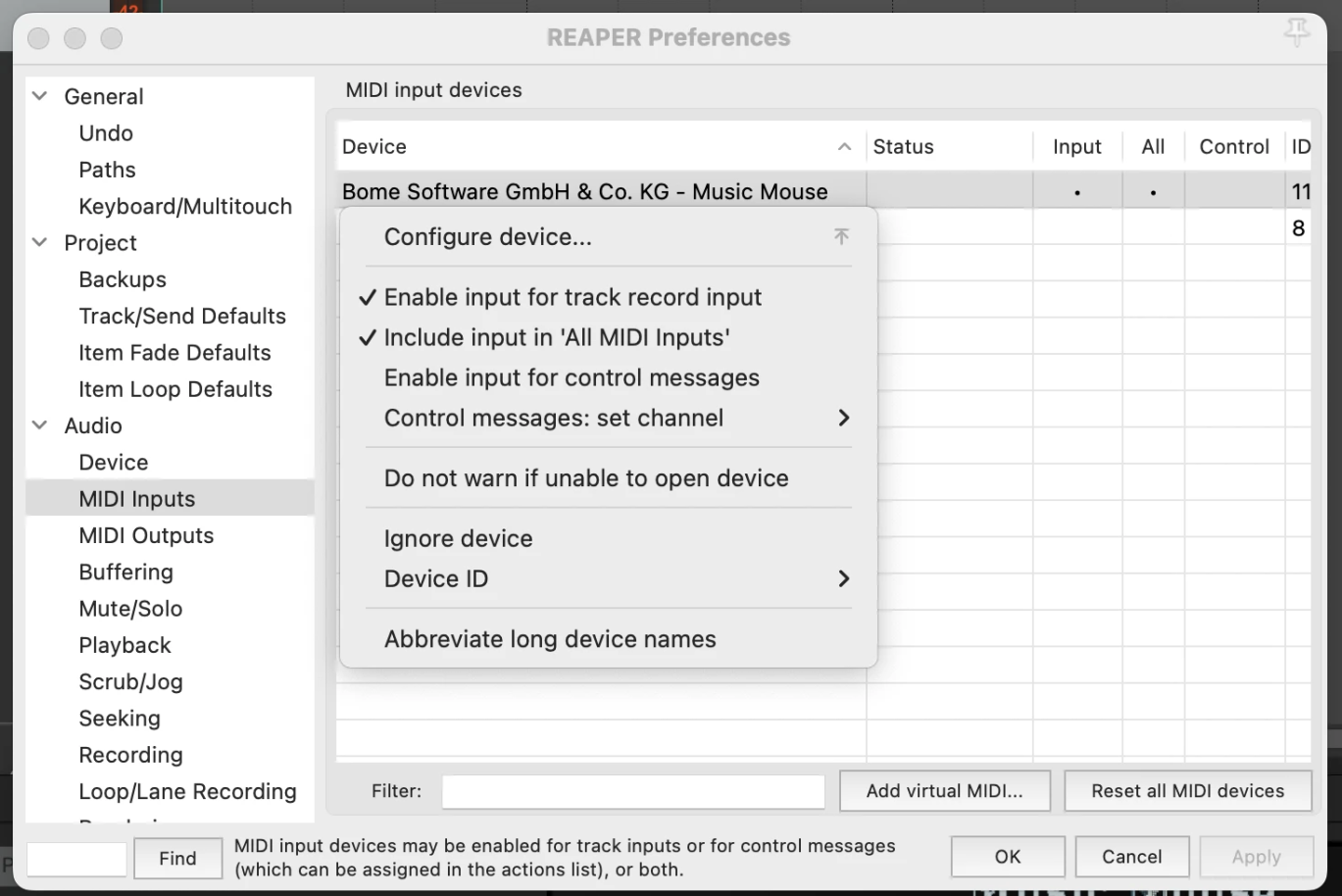
- Navigate to MIDI Inputs and select the entry that says “Bome Software GmbH & Co. KG – Music Mouse“. Right click and select Enable input for track record input and Include input in ‘All MIDI Inputs
- Navigate to MIDI Outputs and select the entry that says “Bome Software GmbH & Co. KG – Music Mouse“. Right click and selected Enable output and Send clock to output